



When you are on the Manage Classes page, if you want to edit a class that has already been created you need to first click on the Edit link, found in the Actions column. See the image below.

The Edit link will open a new page where there are several tabs to select from.
On the Info Tab, you can change the class name, period, grade level, or even what school the class will be at if there is more then one school in your district. Every time you change something on one of these tabs you need to click Save Info before moving to the next tab or returning to the previous page via the Back to Classes link.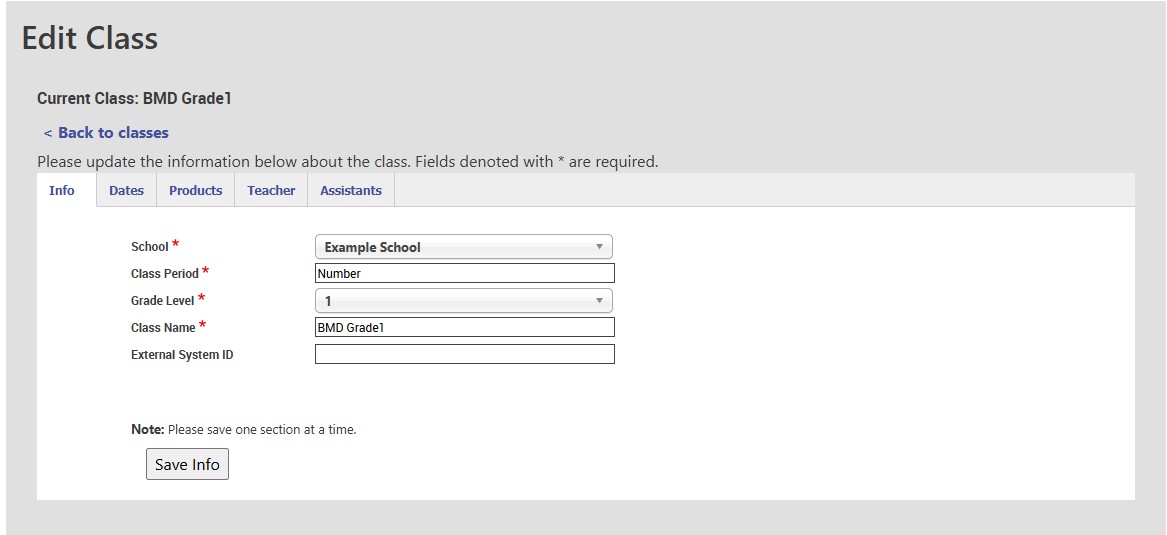
On the Dates tab, you can change when the class has access to the products. As stated on the Create Classes page, and highlighted in the image below, teachers and students can not access the products for the class outside of these dates.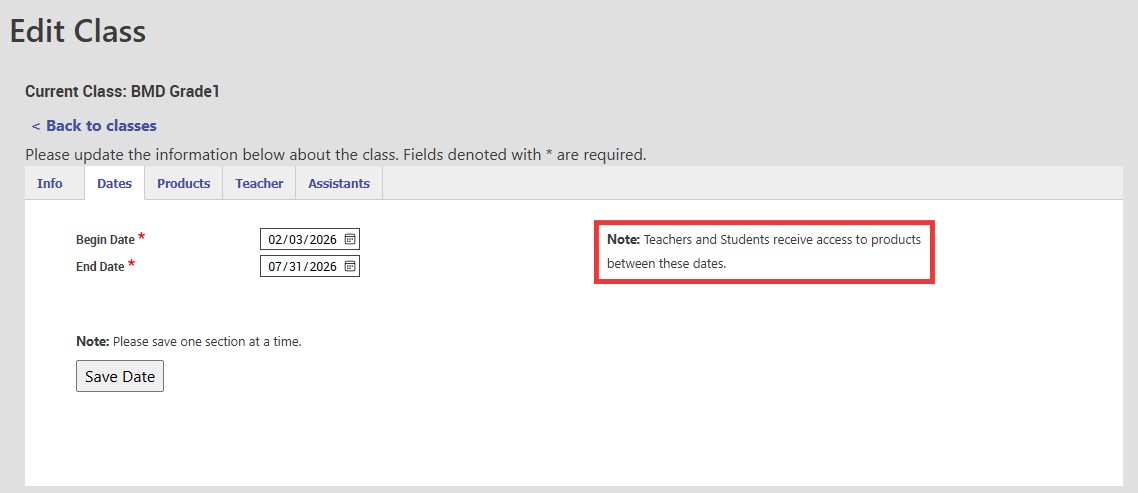
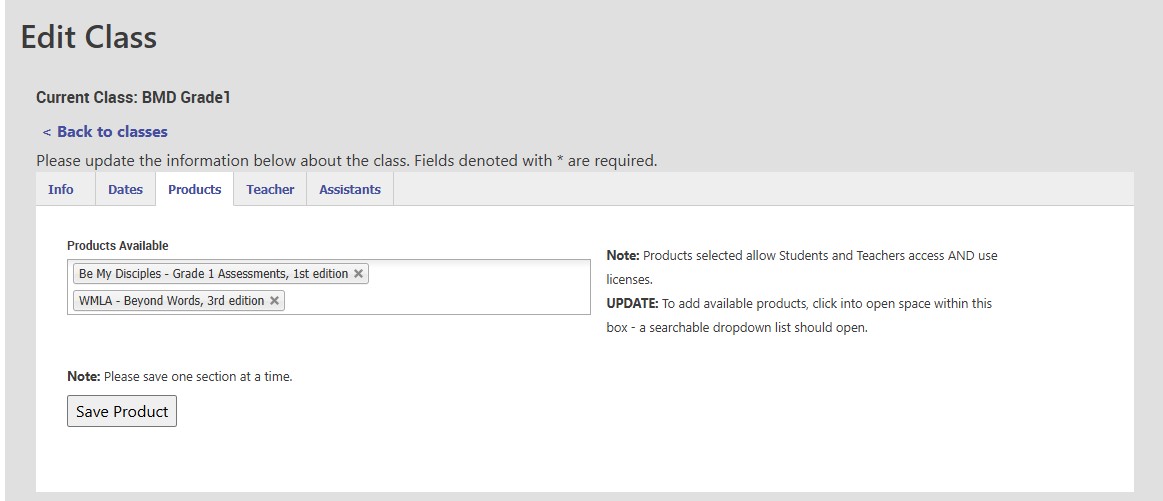
If you have decided to add or remove products from the class you will do so on the Products tab. Clicking on the Products Available box will let you click on products you want to add or you can click on the x next to already assigned products to remove them.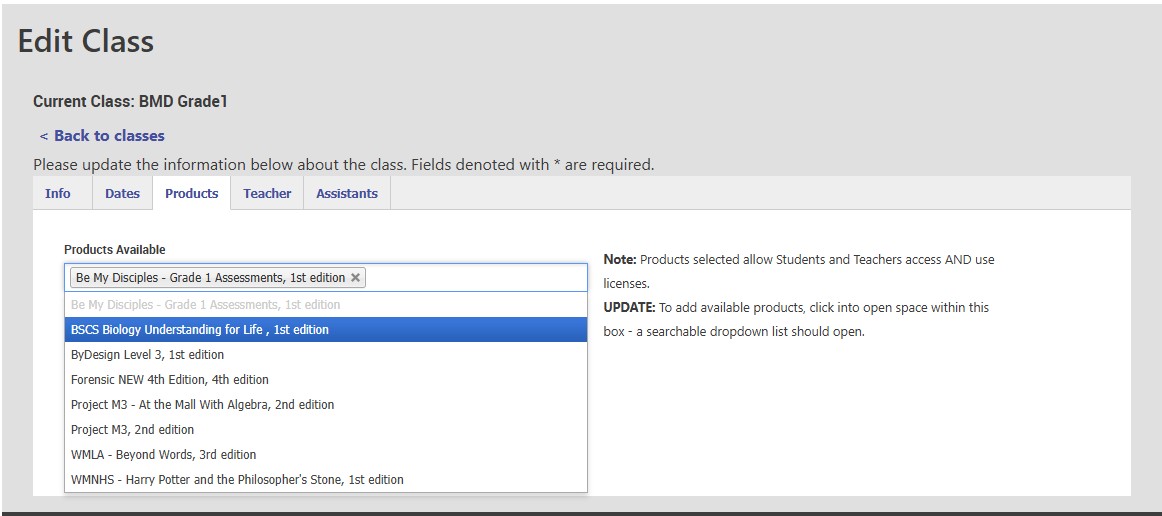
On the Teacher tab you can change who the main teacher is for the class. There can only be one main teacher for each class.
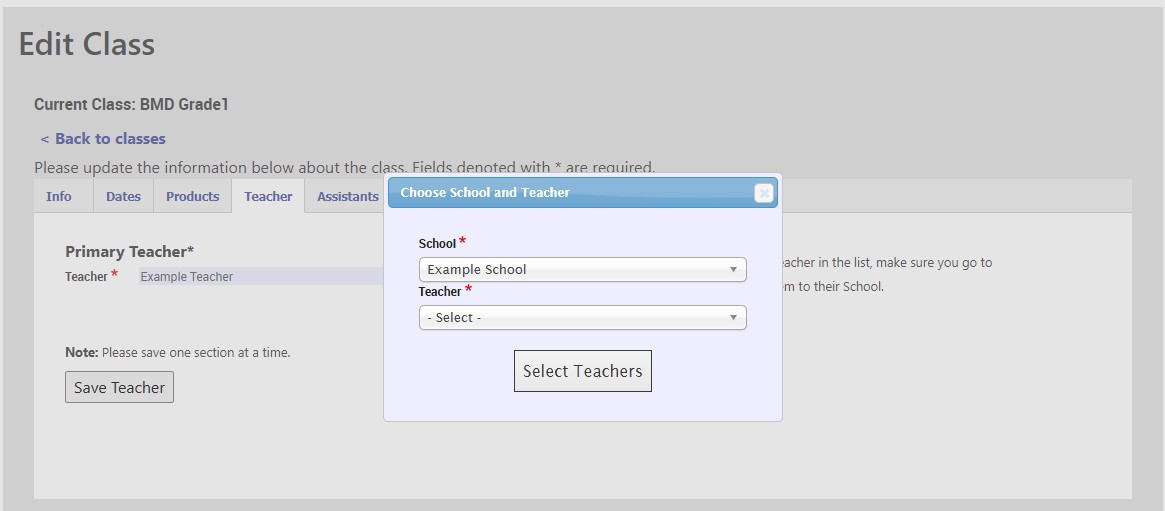
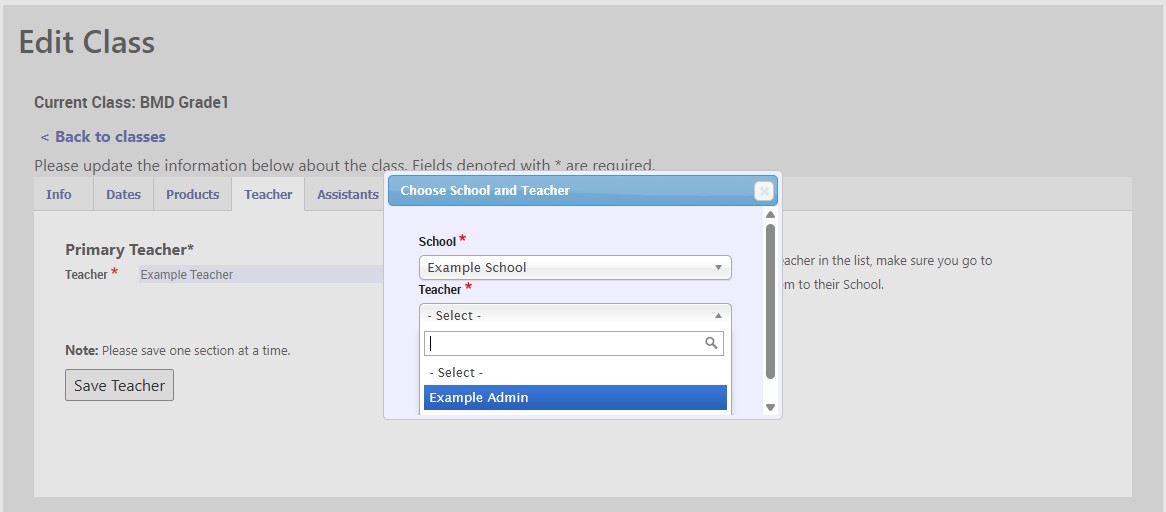
To change the teacher click on the small image of a person with a pencil. That will bring up a pop up box with a dropdown selector to pick the new teacher from. It will be a list of all teachers at the school the class is at. 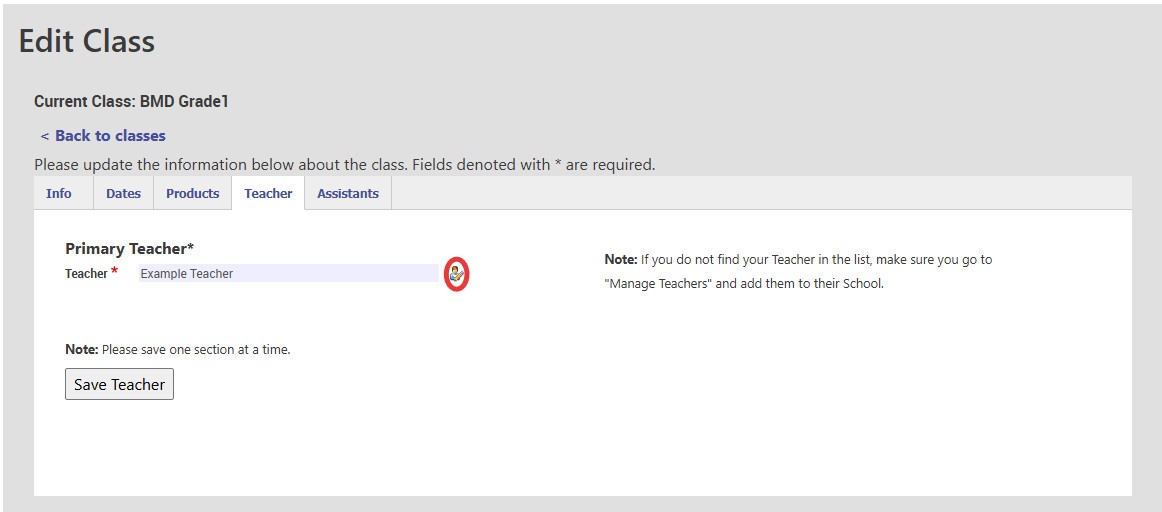
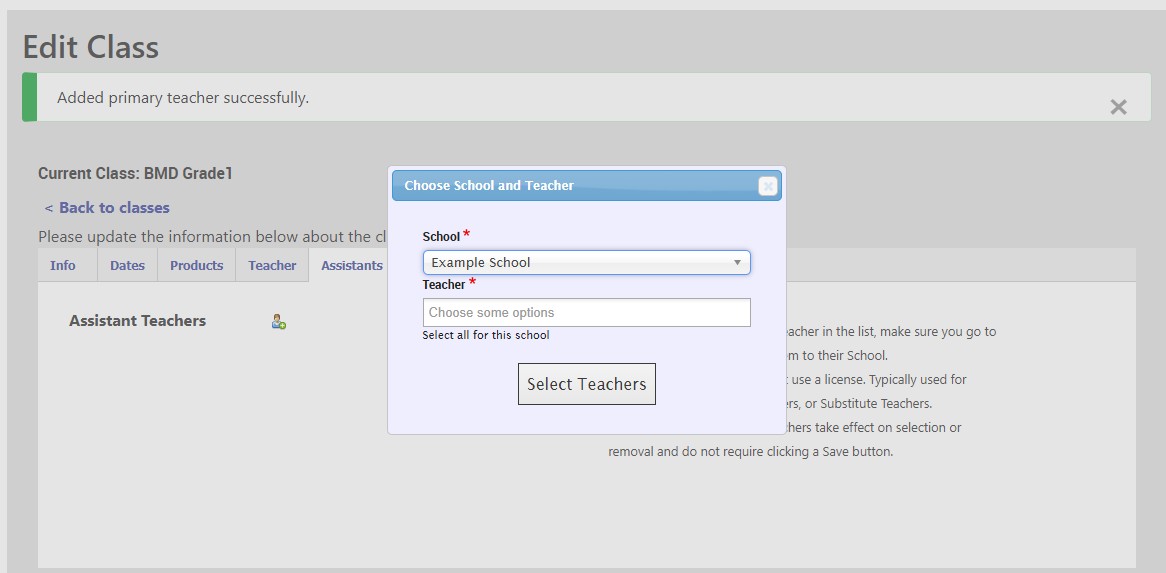
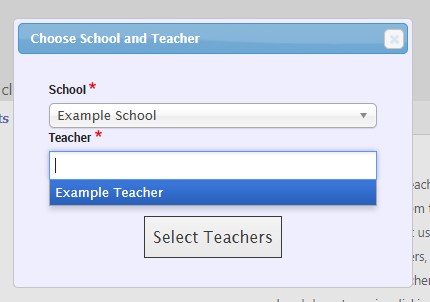
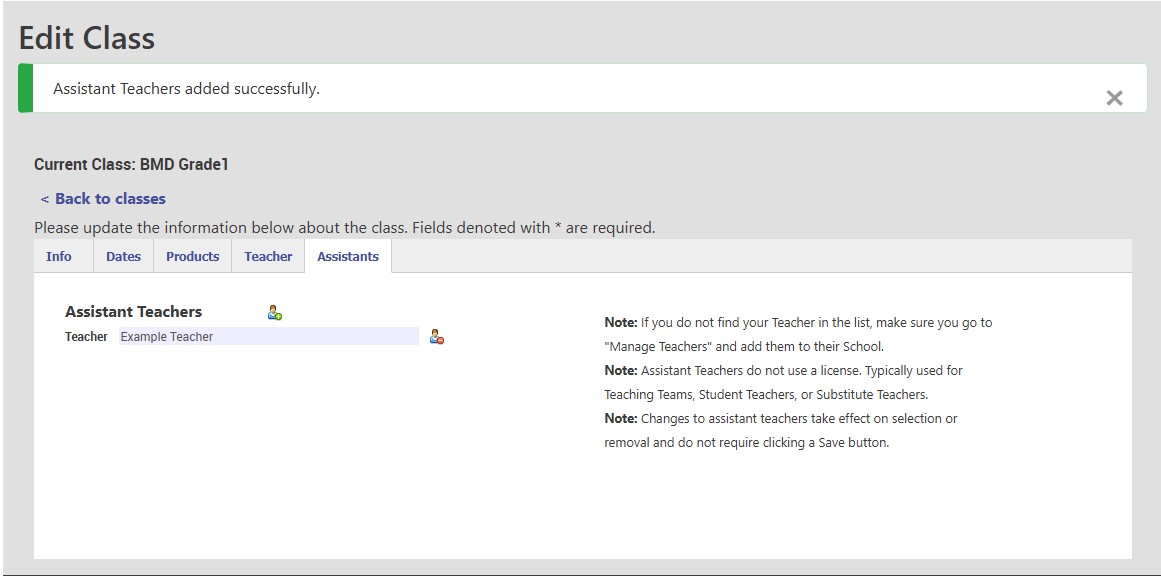
Last we have the Assistants tab. Here you can add teacher aids, subsitute teachers, and often administors will also add themselves here so they can help in the classes if need be. More then one person can be an assistant in a class and assistants do not require their own teacher license for the product.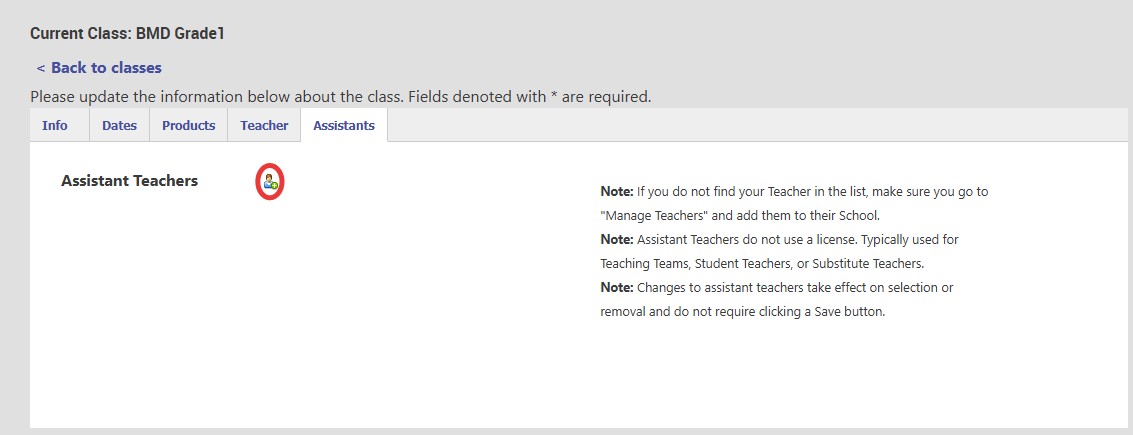
Remember that you need to save any changes on each tab before moving to the next tab or going back to the main Managing Classes page. 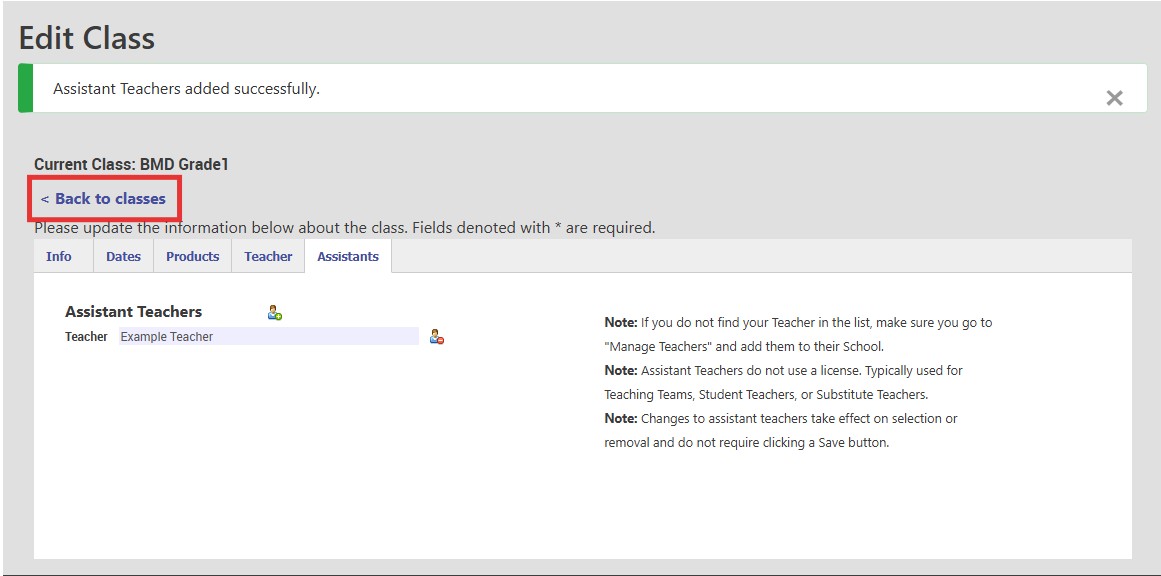
<< Back to Topic Selection Page
Technical Support
Live Chats are available at https://help.kendallhunt.com/k12-customer-support by clicking the "Start a Chat" button and choosing "Technical Support".
Live Chat Hours:
Monday – Friday: 8am – 10pm CST
Saturday: 9am – 9pm CST
Sunday: 9am – 10pm CST
Support Requests through email can be submitted at techsupport@kendallhunt.com.
Contact OnBoarding for help with Clever/ClassLink/Canvas setup.
To find the sales representative for your area, please click here.