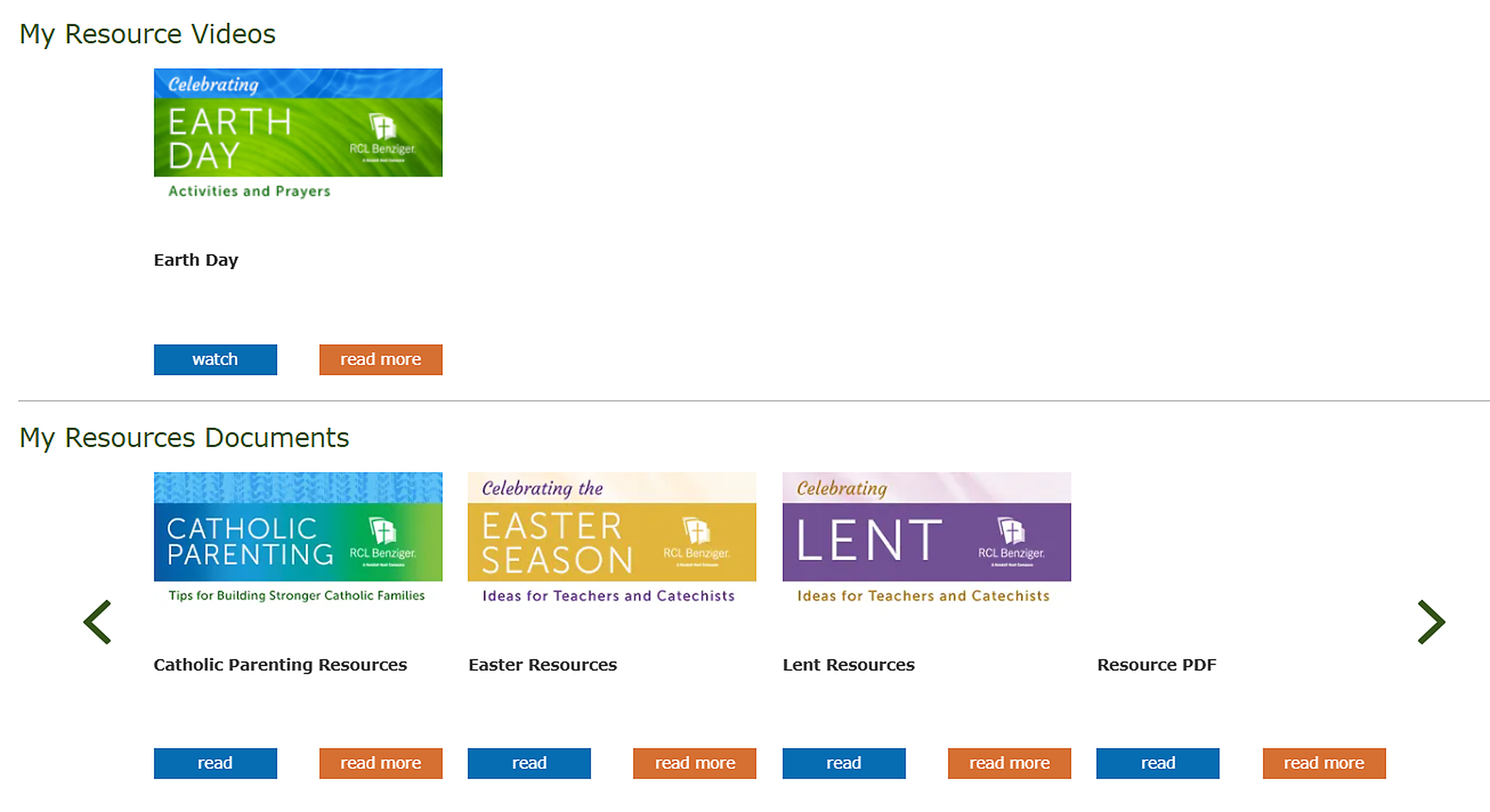



Adding Resources to My Resource Library
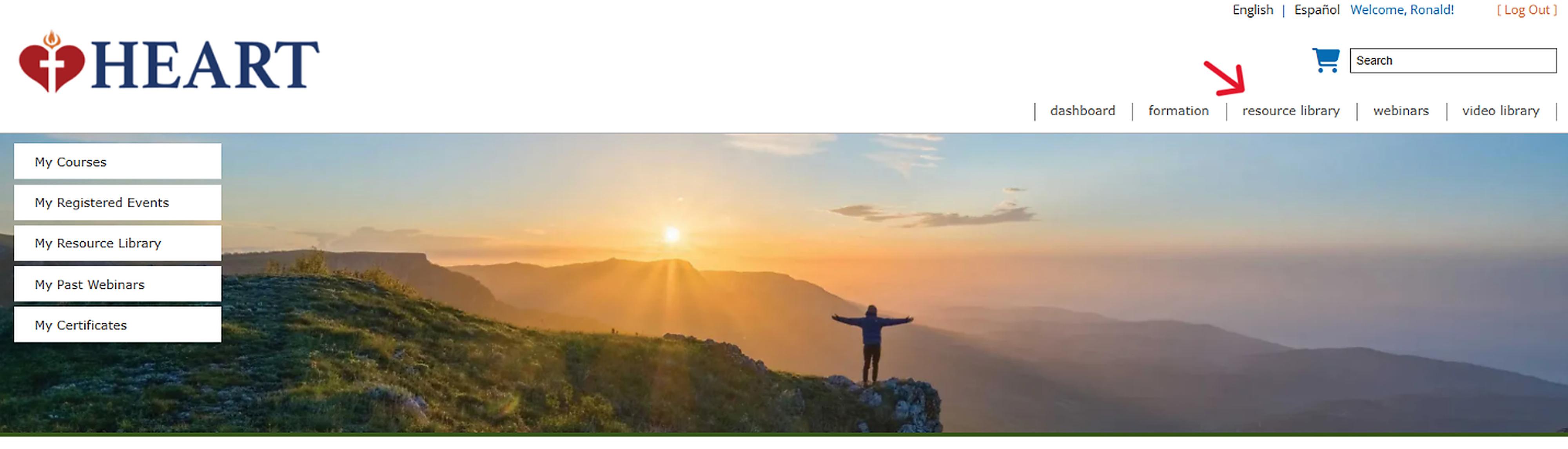
Click on “Resource Library” located under the search bar. Here you can find resource Documents to add to your My Resource Library.
There are several methods you can use to search for the resources you would like to use. Please note that some resources will be free to add while others will require you to purchase.

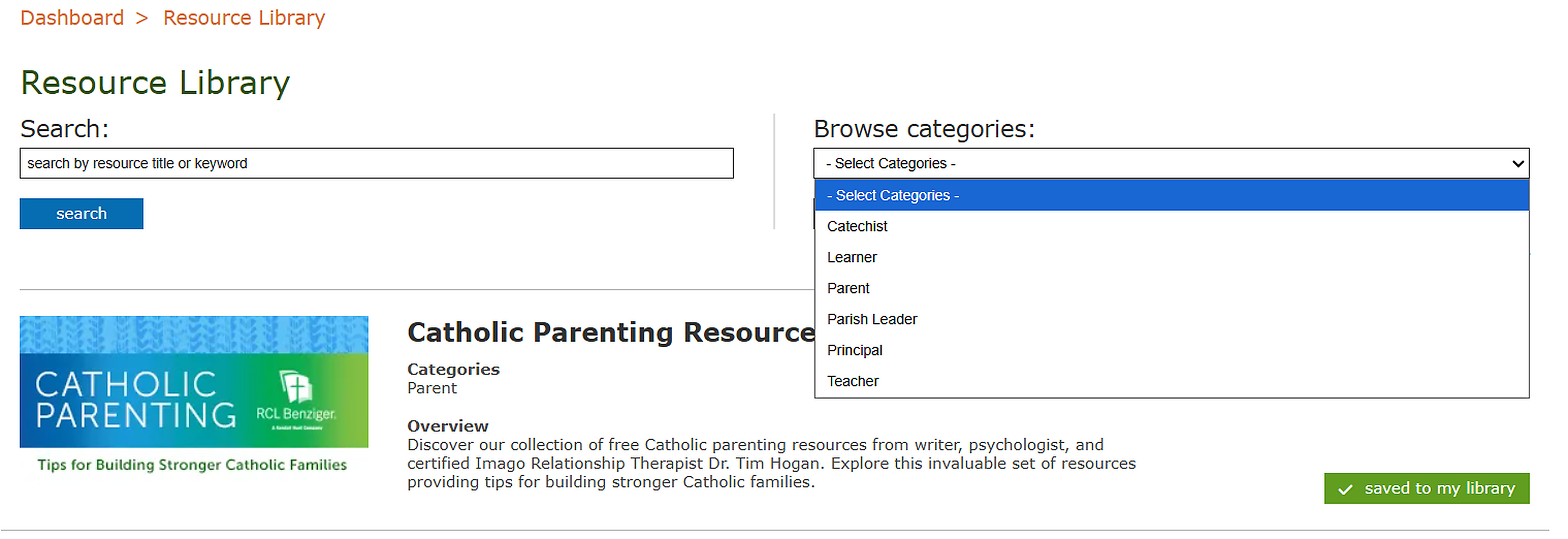
You can use the search bar and/or the Categories section to find the resources that you would like to use. The Categories search option has both categories and topics that you can use to narrow down your search for resources.
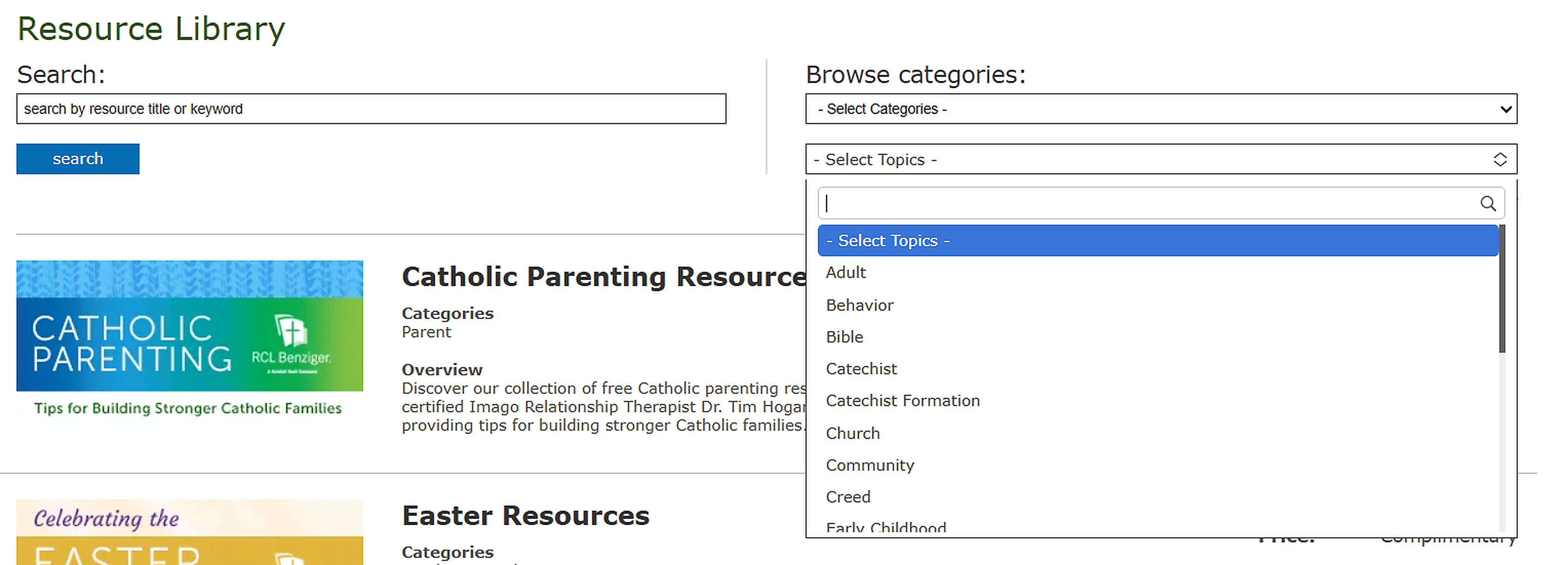
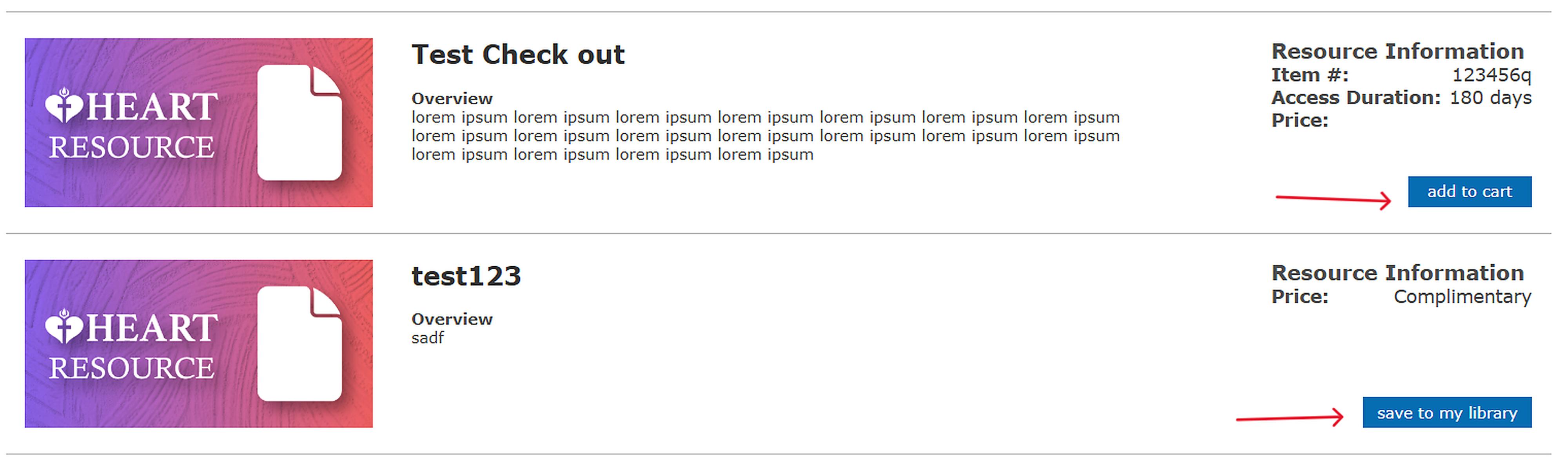
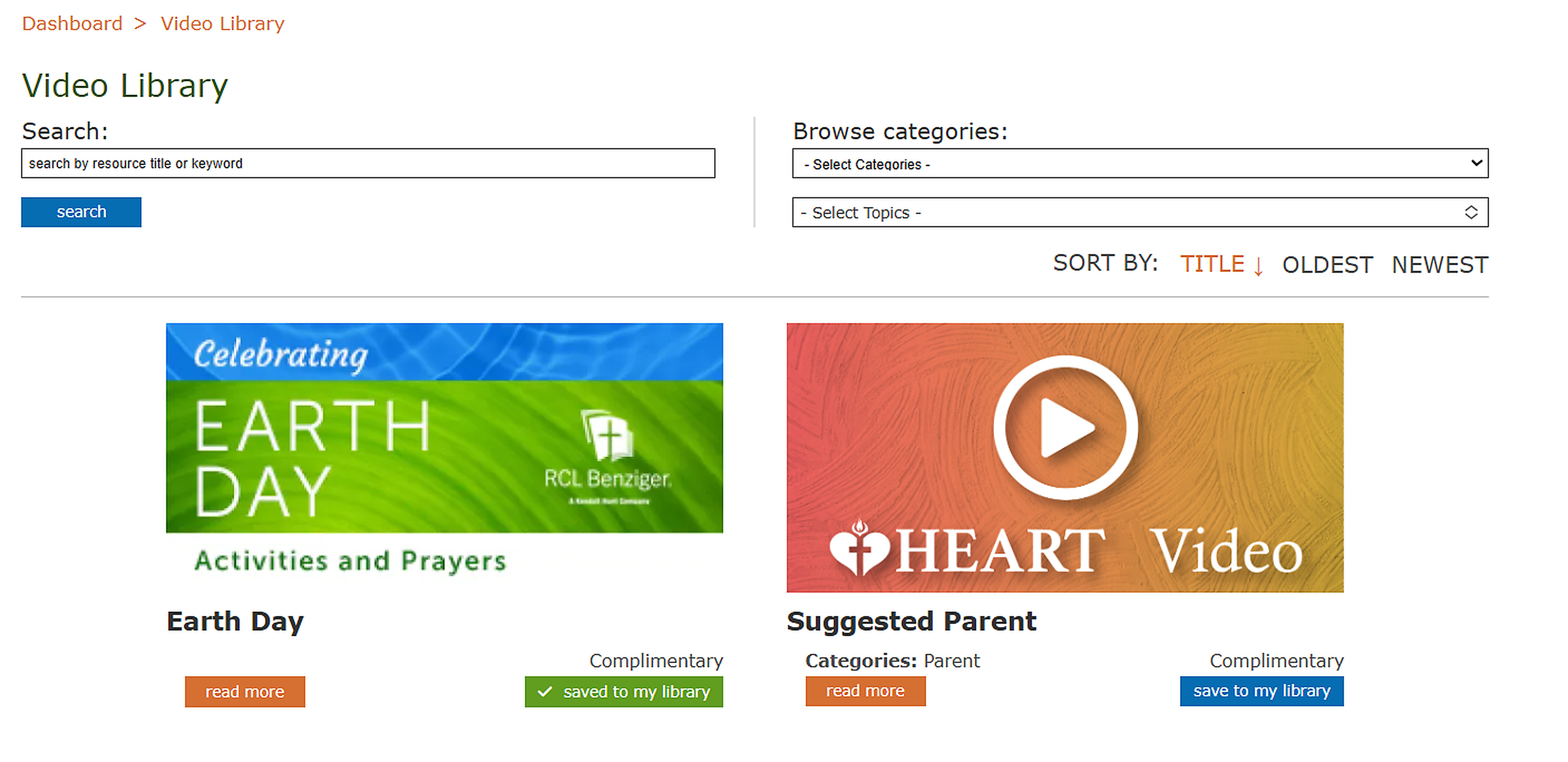
To add the resource to your My Resource Library simply click “save to my library” or “add to cart” to purchase it. Once either option is completed it should then give a green box with a check mark stating, “saved to my library”.

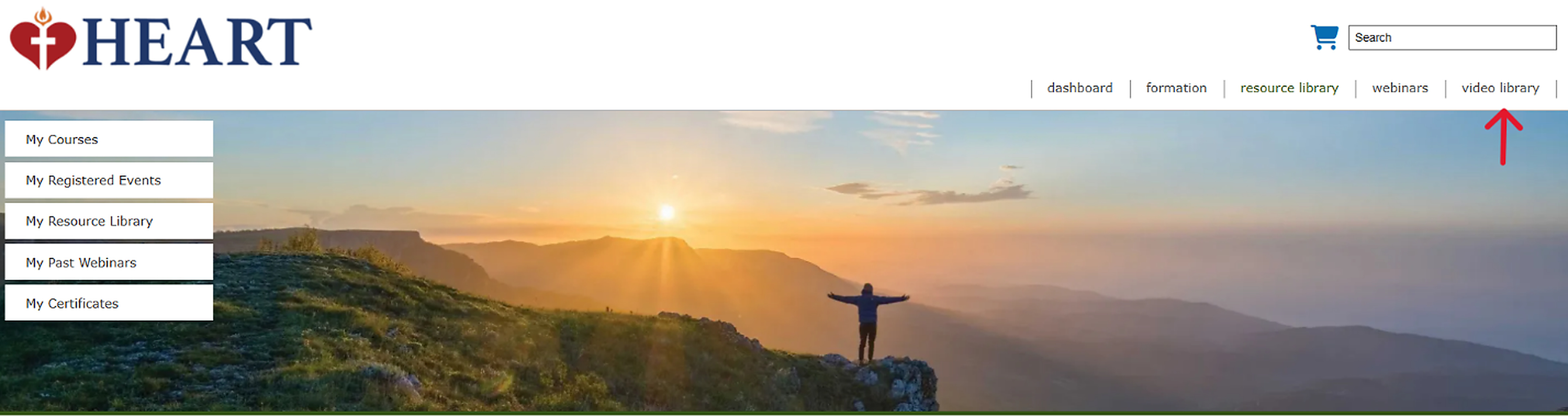
Click on “Video Library” located under the search bar. Hear you can find recorded resource videos to use.
Video Library is set up the same as Resource Library. Searching and adding will be the same as on the Resource Library page.
To access the resources you’ve added to your My Resource Library, simple return to the Main page by clicking on “dashboard” and click on “My Resource Library” on the left side of the screen on the Main page.
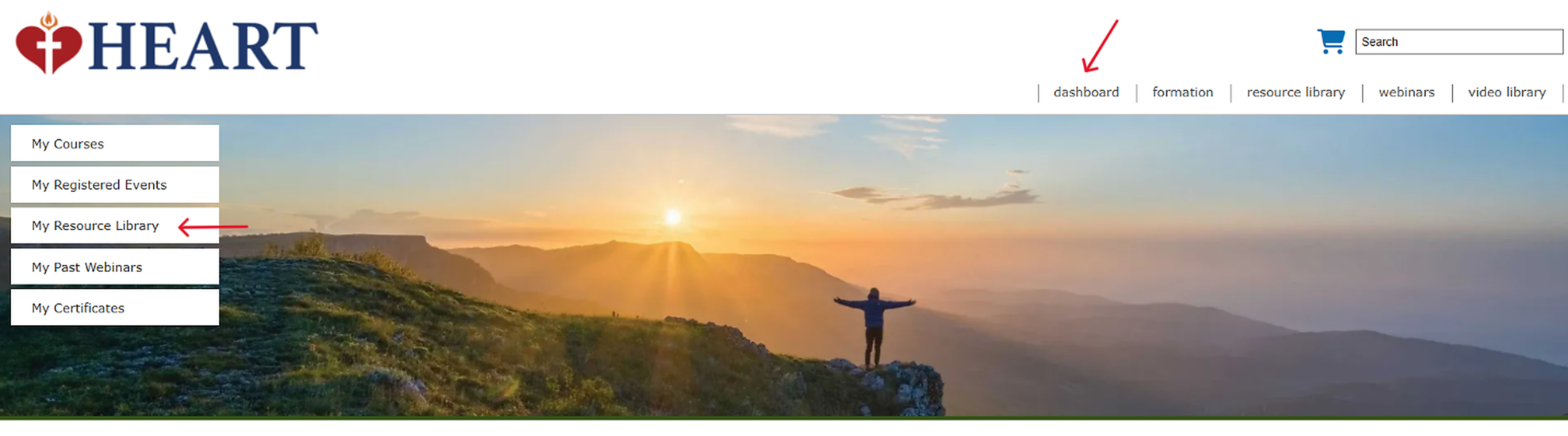
Here you can access any resources you have purchased/selected on the Resource Library and Video Library pages.