



Instructor resources for Paradigm Education Solutions titles on Cirrus™ 2.0 live in your Cirrus 2.0 dashboard. This page shows how to find them, download them, and extract the files so you can use them or upload them to your LMS.
Watch the walkthrough
Step-by-step instructions
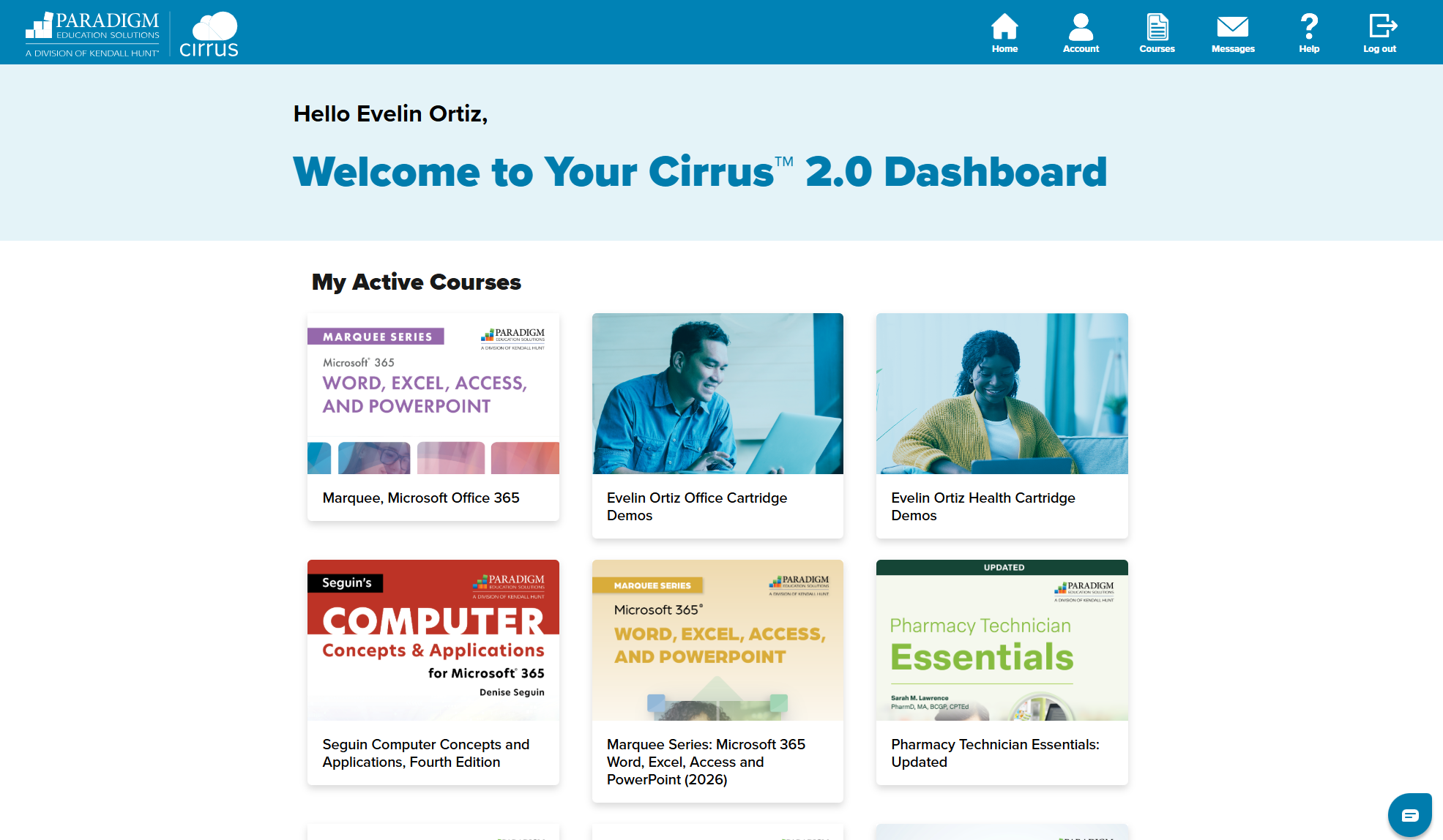
Sign in to your Cirrus 2.0 account.
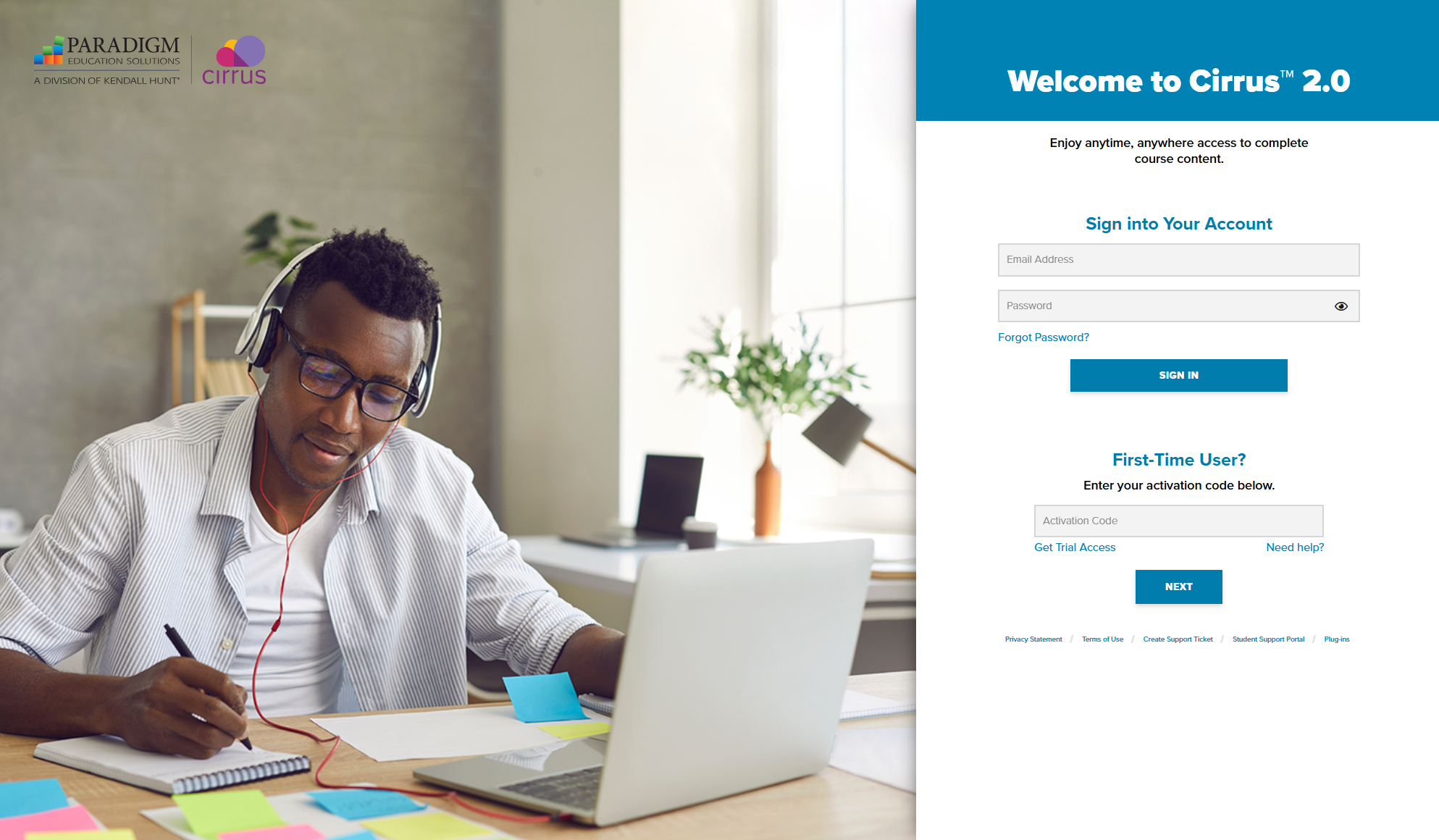
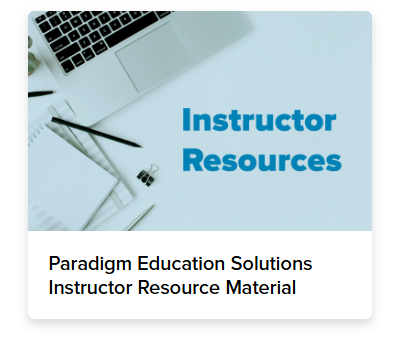
On your Cirrus 2.0 Dashboard, click the Instructor Resources tile (Paradigm Education Solutions Instructor Resource Material).
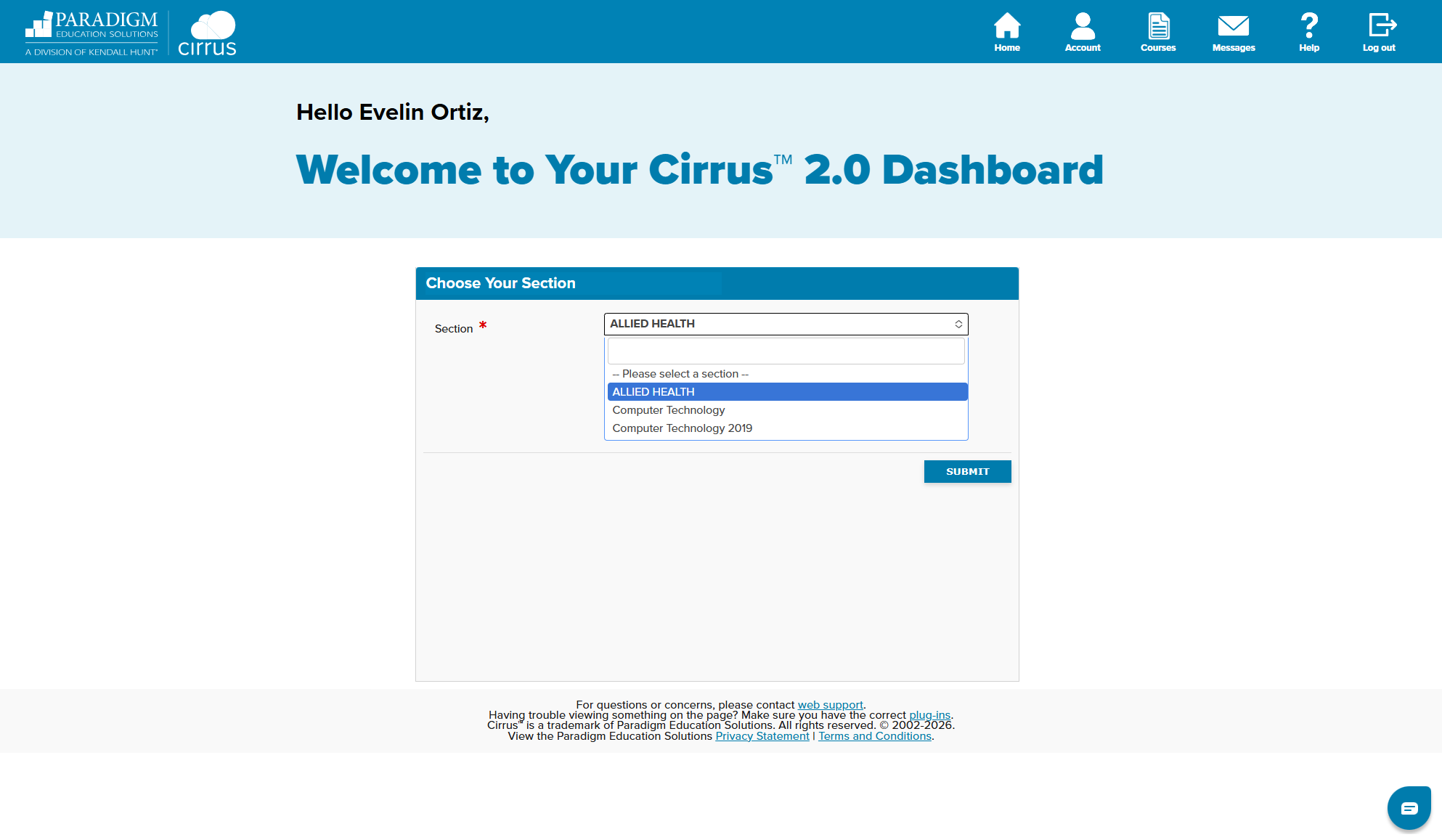
Choose your section, if prompted. If you teach across more than one discipline, select Allied Health or Computer Technology (use Computer Technology 2019 for older editions), then click Submit. If you teach in only one discipline, you will go straight to your instructor resources.
On the Instructor Resources page, scroll to your title and check that the edition is correct.
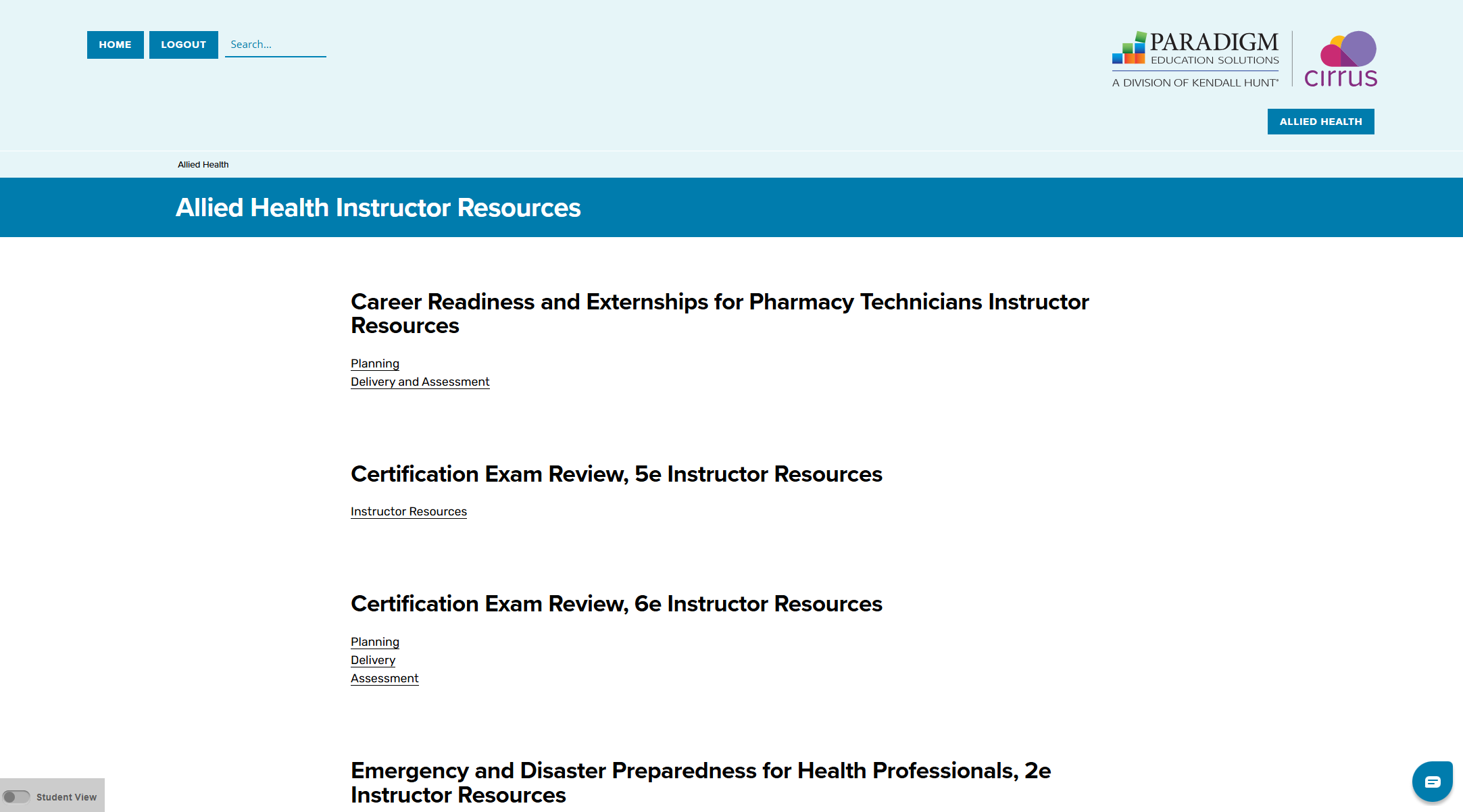
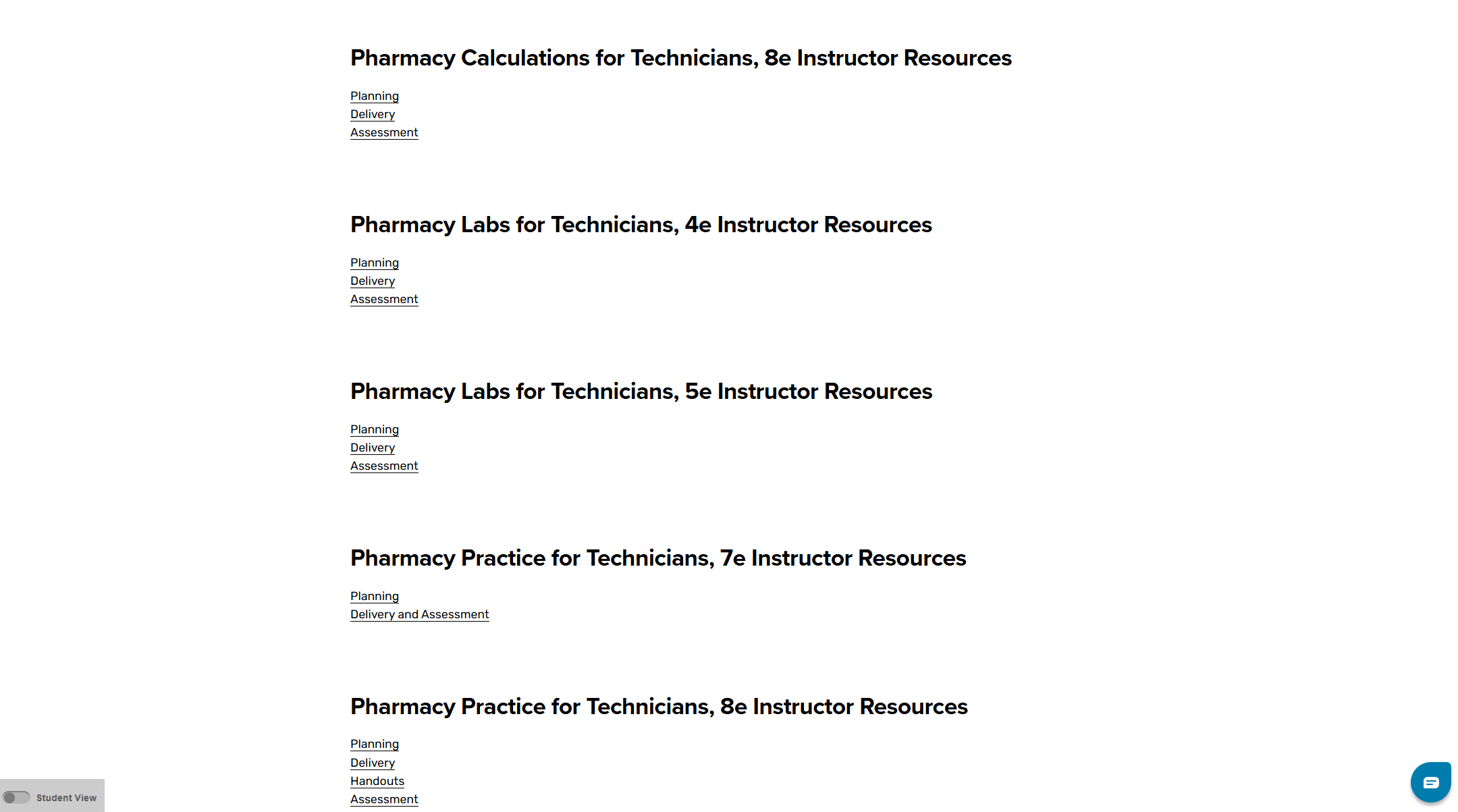
- Click each underlined link under your title (for example Planning, Delivery, Assessment) to download that resource folder. The links vary by title. Each one downloads to your computer as a compressed (zipped) folder.
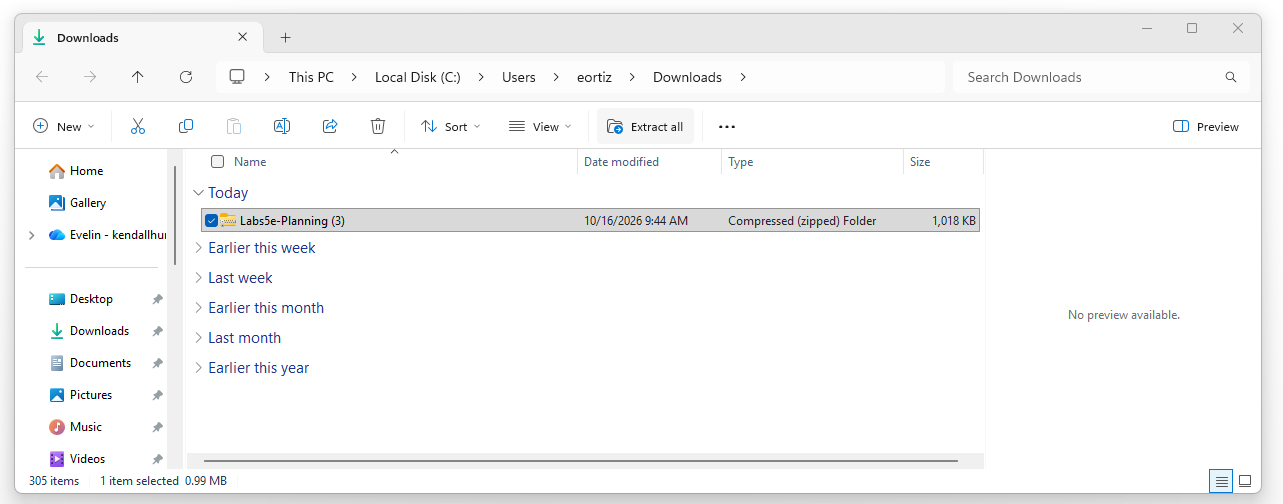
Extract the files. Open your Downloads folder, click the zipped folder once, then click Extract all on the File Explorer ribbon and click Extract to confirm.
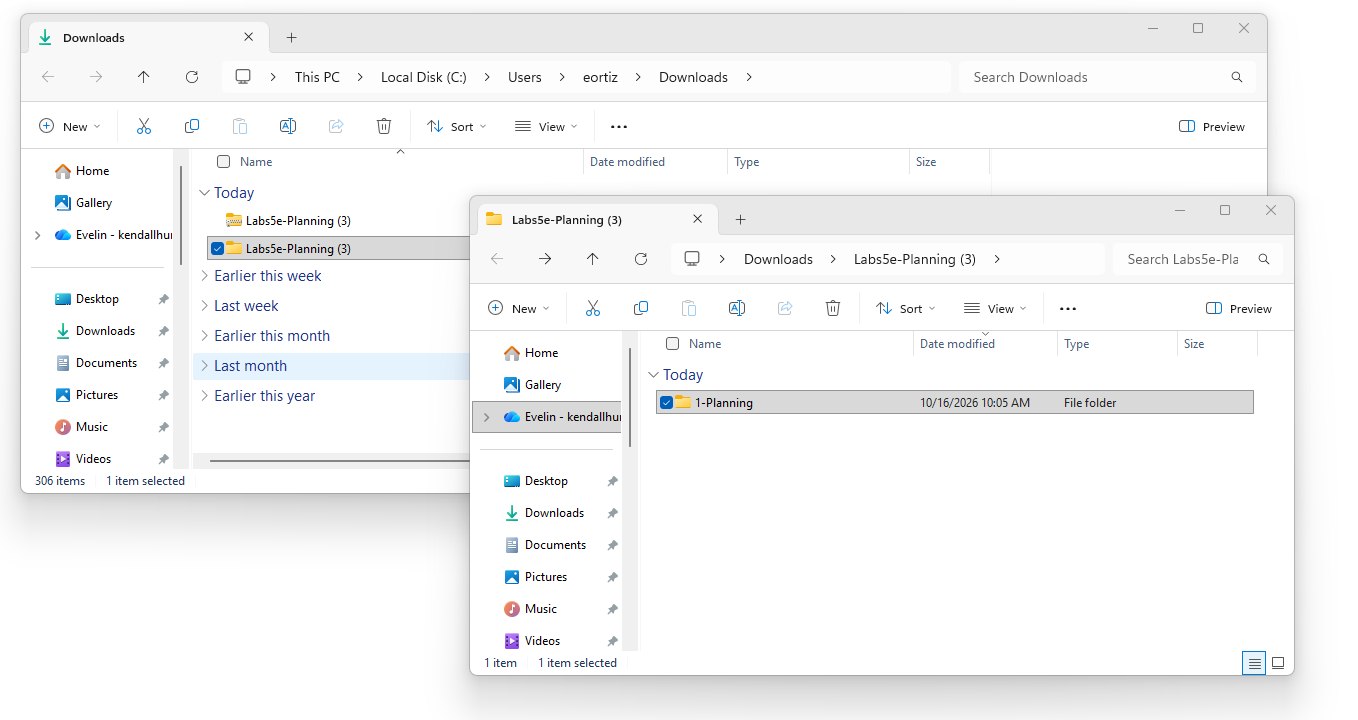
Open the extracted folder to see the full set of files. You can now delete the zipped folder (the one with the zipper icon). Repeat steps 5–7 for each remaining resource folder.
Quick recap
- Sign in to Cirrus 2.0 and open the Instructor Resources tile.
- Find your title and edition, and download each linked folder.
- Extract the zipped folders, then delete the zips.
- Questions? Contact your Paradigm Education Solutions representative.