



On the Manage Class Roster page you can do a number of things. You can move student accounts from school to school, class to class, remove students from a class, or generate codes for students/parents to use to purchase their own copies of the materials to be used at home and in the class.
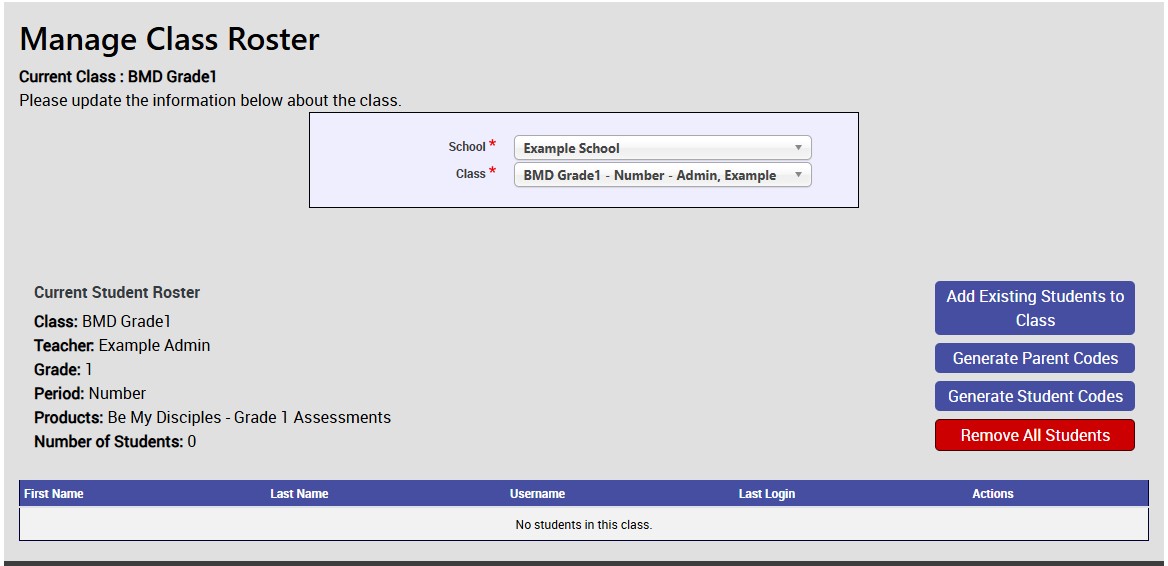
When you click on the Add Existing Students to Class button the following page will look as the image below. If this is a larger school district or diocese with multiple locations, you can select which school the student is moving from. If they are transferring classes in the same school, you can select what class they are starting in and then select the student or students from the list that appears. You can select more then one student at once. Once you have selected all the students being moved you can click on Add Student(s) button. After you get the message that the students have been successfully moved, you can click on the Back to Class Roster button to go back to the previous page.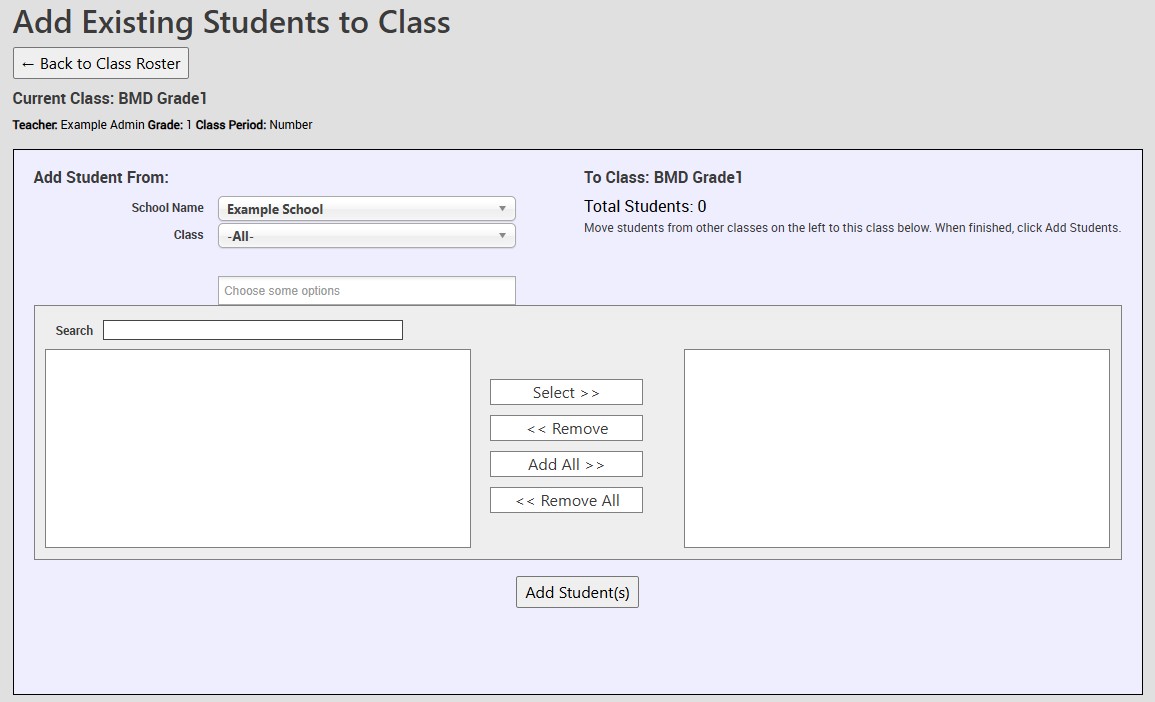
Technical Support
Live Chats are available at https://help.kendallhunt.com/k12-customer-support by clicking the "Start a Chat" button and choosing "Technical Support".
Live Chat Hours:
Monday – Friday: 8am – 10pm CST
Saturday: 9am – 9pm CST
Sunday: 9am – 10pm CST
Support Requests through email can be submitted at techsupport@kendallhunt.com.
Contact OnBoarding for help with Clever/ClassLink/Canvas setup.
To find the sales representative for your area, please click here.